Dots guide
15 Meaningful Timelines to Put on Your Lock Screen
The best timeline is not necessarily your entire life. It is the stretch of time that helps you remember what this season is for.
Published August 8, 2026
Quick Answer
Put one bounded, meaningful chapter on your Lock Screen: the current year, today, a semester, training block, creative project, trip, family visit, leave, move, or observance. Choose a unit that makes change visible without creating clutter. A good timeline should orient you in a glance, then let you get on with your day.
A Lock Screen Can Be a Threshold
Your Lock Screen sits between intention and interruption. You see it before the message, map, feed, or task you reached for. That makes it unusually valuable space—but only if it shows less, not more.
A timeline works here because it can communicate position without another notification. A few filled dots say, “this is where you are.” The open dots say, “this chapter is still unfolding.” There is no streak to protect and no alert to dismiss.
Public life-calendar discussions suggest that people reach for this format across education, fitness, work, money, travel, faith, and family. One creator reported those as the most common categories across roughly 35,000 setups; the figure is self-reported, but the range is the useful signal. People are not only counting a lifetime. They are giving shape to the part of life they are in now.
15 Timeline Ideas
Idea 1
The current year in days
Best unit: days
Use January 1 through December 31 to see the shape of the year without turning it into a list of resolutions. The filled area shows the season you have lived; the open area gives the rest of the year room to arrive.
Idea 2
Today in minutes
Best unit: minutes
A single day is useful when a lifetime or year feels too abstract. Set the bounds around your waking hours and let the grid remind you that this afternoon is real, finite, and still available.
Idea 3
A 12-week focus season
Best unit: weeks
Choose one theme for the next 12 weeks: making, learning, simplifying, reconnecting, or resting. The timeline holds the container. It does not need to grade what happens inside it.
Idea 4
A semester or school year
Best unit: weeks
Map orientation to the final day, including reading weeks and breaks. Students, parents, and teachers can see where the term is without translating every busy week into a percentage in their heads.
Idea 5
The runway to an exam or graduation
Best unit: days
Begin when preparation starts and end on the exam, defense, certification, or graduation date. Use the view to protect realistic study and recovery time—not to create a red-alert countdown.
Idea 6
A training block
Best unit: days or weeks
Map the plan leading to a race, hike, performance, or personal fitness event. A timeline can show the rhythm of the block while your actual training plan remains the authority on effort and rest.
Idea 7
A creative project
Best unit: weeks
Give a book draft, album, film, portfolio, or handmade gift a visible season. Seeing week six of sixteen can help you return to the work without demanding a daily streak.
Idea 8
A product or team launch
Best unit: workdays or weeks
Use kickoff and launch as the boundaries for a release, event, or campaign. The Lock Screen provides the long arc; your project system still owns tasks, dependencies, and changing plans.
Idea 9
A savings season
Best unit: months
Map the period you have chosen to save for an emergency fund, move, course, or meaningful purchase. Keep money amounts in the tool designed for them; let the timeline show only the commitment window.
Idea 10
The wait for a trip
Best unit: days
Start on the day you book—or today—and end on departure. The point is not to wish ordinary life away. It is to make the anticipation visible and remember that preparation is part of the experience.
Idea 11
The trip itself
Best unit: days
On departure day, switch the same idea from countdown to presence. A seven-day trip rendered as seven dots can gently mark where you are without filling the Lock Screen with an itinerary.
Idea 12
Time until the next family visit
Best unit: days or weeks
Map the real dates between visits with parents, grandparents, siblings, or close friends who live far away. The timeline can prompt a call or a plan, but it should not estimate anyone’s remaining lifespan.
Idea 13
Parental leave, a sabbatical, or a residency
Best unit: weeks
Some chapters arrive with unusually clear bounds. Showing the whole interval can help you honor its temporary character without expecting every week to be productive or memorable.
Idea 14
A move or home-making chapter
Best unit: weeks
Use the accepted offer, signed lease, or first packed box as the beginning and move-in day as the end. For a renovation, choose one phase rather than pretending the entire project has a perfectly knowable finish.
Idea 15
A seasonal or spiritual observance
Best unit: days
Create a timeline for a retreat, holiday season, Ramadan, Lent, Advent, or another period of reflection important to you. Use dates from the calendar or community you trust, then choose colors that feel appropriate to the observance.
Choose by Consequence, Not Drama
The most dramatic timeline is rarely the most useful one. “My entire life” sounds profound, but “the six weeks until I see my parents” may lead to a clearer action. A visible school term may help a family pace itself better than an abstract reminder that childhood is short.
Before putting a timeline on your Lock Screen, finish this sentence: When I see this, I want to remember… If the answer is specific—leave room for rest, call before the visit, return to the draft, enjoy the trip—you have a useful candidate. If the answer is only “time is running out,” choose a smaller horizon.
Set It Up in Dots
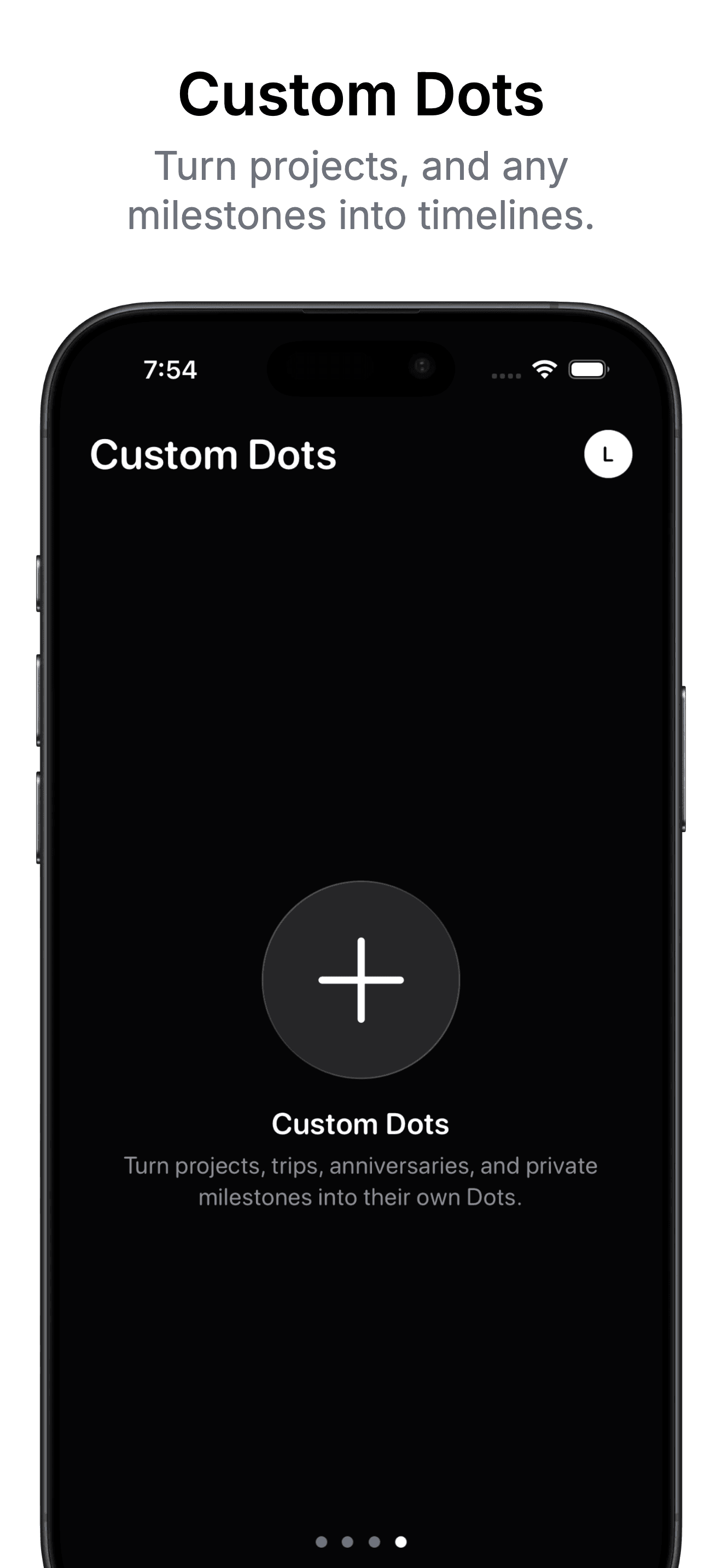
- Open Dots and create a custom timeline with a clear title, start date, end date, and unit.
- Choose colors that are readable behind your Lock Screen clock and widgets.
- Tap the wallpaper control and select a Minimal or Detailed layout.
- Apply the wallpaper once and check that the title means what you intended at a glance.
- Use the guided Apple Shortcuts setup if you want the image to refresh automatically.
The complete connection takes about five minutes. Follow the auto-updating Lock Screen wallpaper guide for the exact shortcut actions and daily automation settings.
Let the Timeline End
When the trip begins, the exam passes, or the project ships, do not leave the completed timeline on your Lock Screen forever. Mark the transition. Save or share the finished view if it matters to you, then choose the next chapter—or return to an ordinary wallpaper.
Rotating timelines keeps the image connected to your actual life. It also prevents the Lock Screen from becoming a permanent productivity surface. Some seasons need a visible horizon. Others need open space.
Put this season where you can see it.
Create a personal timeline in Dots, choose a minimal or detailed design, and let Apple Shortcuts keep it current on your iPhone Lock Screen.
DownloadFrequently Asked Questions
What makes a good Lock Screen timeline?
A good timeline has a clear beginning and end, relates to something you genuinely care about, and helps you make a better choice when you see it. Known dates usually work better than speculative deadlines.
Should my timeline be a countdown?
It can be, but it does not have to emphasize time remaining. A timeline can show elapsed and open units as a view of the whole chapter. For trips or leave, switching from anticipation to presence once the event starts often feels more useful.
Which unit should I choose: days, weeks, months, or minutes?
Choose the largest unit that still reveals meaningful change. Minutes suit a day; days suit a trip or short runway; weeks suit a semester or project; months suit a longer season. Too many tiny units create visual noise.
How many timelines should I put on my Lock Screen?
One is usually enough. The Lock Screen works best as a quiet cue, not a dashboard. Keep other timelines in Dots and rotate the wallpaper when your current season changes.
Can Dots update a timeline wallpaper automatically?
Yes. After you design a Dots wallpaper, Apple Shortcuts can apply a fresh version on a daily schedule. Dots provides the wallpaper actions and a guided setup flow.