Dots guide
How to Create an Auto-Updating iPhone Lock Screen Wallpaper with Dots
Put the time you care about on the surface you see most. Dots can turn Life in Weeks, Year in Days, Today in Minutes, or a personal timeline into a Lock Screen wallpaper that quietly redraws itself every day.
Published July 12, 2026
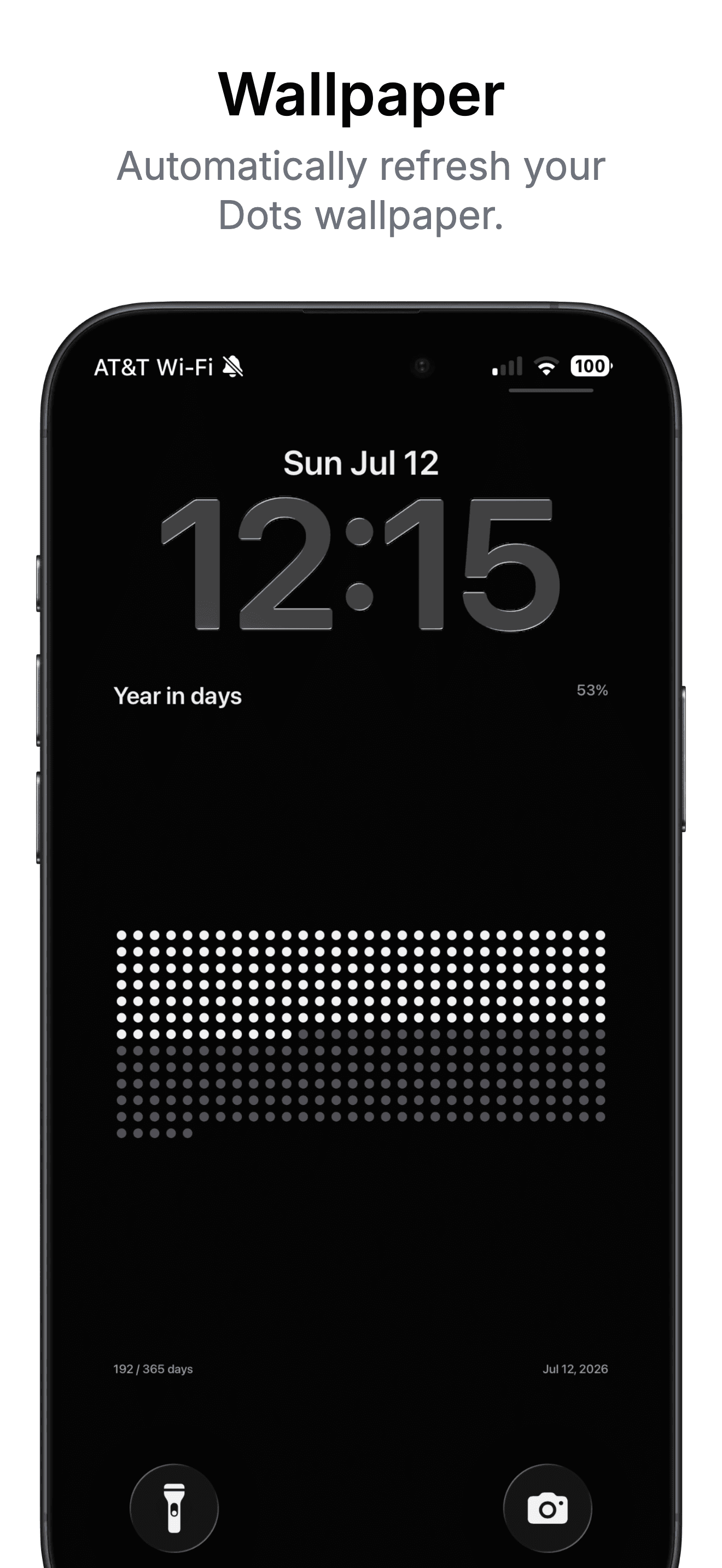
What You Will Build
In about five minutes, you will connect Dots to Apple Shortcuts and schedule a daily personal automation. Each run creates a fresh Dots image from your current timeline, applies it to a photo-based Lock Screen, and records that the update succeeded. After setup, Dots does not need to stay open.
Your Time, Before You Unlock Your Phone
Widgets are useful, but they still compete with apps and icons. A Lock Screen wallpaper lives one step earlier. Before the feed, inbox, or task list asks for your attention, you get a quiet view of where you are: week 1,720 of a life, day 192 of a year, or day 18 of the trip you have been planning.
Dots is designed for that glance. It does not add a streak, alert, badge, or judgment. Elapsed dots fill in; future dots remain open. The image changes because time changed, not because the app wants you to come back.
The result is closer to a living Life Calendar than a conventional wallpaper. It stays visually calm while remaining current enough that your eyes do not completely stop seeing it.
What Dots Can Put on Your Lock Screen
Any main Dot page can become your wallpaper. Choose the scale that matches the kind of attention you want:
- Life in Weeks for the long view: chapters lived, this week, and the weeks still open.
- Year in Days for a steady daily sense of the current season.
- Today in Minutes for returning attention to the day you are actually living.
- Custom Dots for a trip, project, school term, sabbatical, anniversary, countdown, or private milestone.
Dots renders the wallpaper for the native size of your screen. You can choose a Minimal or Detailed layout and select a palette before connecting the automation. The Detailed version includes the timeline title, percentage, elapsed and total units, and the current date; Minimal leaves more room for the grid itself.
How the Automatic Update Works
Apple does not let an app silently replace your wallpaper on its own. The one-time connection happens in Shortcuts, using three actions supplied by Dots and iOS:
1. Dots creates
Create Dots Wallpaper
Renders a fresh PNG from the Dot page, style, colors, and screen size you selected.
2. iOS applies
Set Wallpaper Photo
Places that new image on the photo-based Lock Screen you chose.
3. Dots confirms
Record Dots Wallpaper Update
Records a successful application so Dots can show the last update and flag an overdue or incomplete run.
Before You Start
You need Dots on your iPhone, Apple's Shortcuts app, and a photo-based Lock Screen. If your current Lock Screen uses a system style that cannot accept a photo, open Settings > Wallpaper > Add New Wallpaper > Photos, choose any temporary image, and add it. You will select this Lock Screen in the shortcut.
Apple documents photo wallpaper setup in the iPhone User Guide. Your clock style, widgets, and Lock Screen controls remain part of the Lock Screen; Dots replaces the photo behind them.
Step 1: Design the Wallpaper in Dots
- Open Dots and swipe to the Life, Year, Day, or custom timeline you want to see.
- Tap the wallpaper button in the page header.
- On the Design step, choose Minimal or Detailed.
- Choose the color palette that works with your Lock Screen clock and widgets.
- Tap Next to reach Connect.
Dots previews the result inside a Lock Screen frame, so you can check spacing and contrast before anything changes on your phone.
Step 2: Create the Apple Shortcut
On the Connect step, use Dots' button to open Shortcuts and create a shortcut named Update Dots Wallpaper. Add these actions in this exact order:
- Create Dots Wallpaper
- Set Wallpaper Photo
- Record Dots Wallpaper Update
In Set Wallpaper Photo, tap the Wallpaper field and select the photo-based Lock Screen you prepared. Expand the action options and turn off Show Preview and Crop to Subject. Those settings let the automation run without stopping and preserve the layout Dots rendered for your screen.
Step 3: Test It Once
- Return to Dots and continue to Test Wallpaper.
- Tap Start 3-Day Trial & Apply or Apply Wallpaper Now.
- Lock your iPhone and confirm the image, clock, widgets, and controls look right.
Dots shows whether the wallpaper was applied successfully and when it last updated. If the style or color needs adjustment, return to Design, change it, and test again. The shortcut always reads the current Dots wallpaper settings, so you do not need to rebuild it.
Step 4: Schedule the Daily Automation
Apple's personal automations run a shortcut in response to an event. To refresh Dots each day:
- Open Shortcuts > Automation and create a new personal automation.
- Choose Time of Day.
- Pick the time and choose Daily.
- Select Update Dots Wallpaper.
- Enable Run Immediately, then save the automation.
Apple supports specific times as well as sunrise and sunset for Time of Day triggers. A few minutes after midnight keeps Year in Days and custom daily timelines current; an early-morning time is a good choice if you prefer the update to happen shortly before you wake up.
Make your Lock Screen a quiet view of time.
Download Dots from the App Store, choose any Dot page, make it yours, and let Apple Shortcuts keep it current without opening the app every morning.
DownloadA Wallpaper That Changes With Your Intention
The useful part is not automatic wallpaper technology by itself. It is choosing what deserves to stay visible. A Life in Weeks wallpaper makes the long horizon present. Year in Days gives shape to the current season. A custom timeline can hold the distance to a wedding, the remaining days of a sabbatical, or the weeks you have committed to a creative project.
You can change the source later without touching the shortcut. Open another Dot page, tap its wallpaper button, apply the new design, and future automatic runs will render that page instead. One automation can follow the timeline that matters now.
This is what Dots is for: awareness without another daily obligation. The wallpaper updates itself. You notice it when you need it, then continue with your day.
Wallpaper Trial
Your first wallpaper update starts a three-day trial. The complete design, test, and automation flow is available during the trial, so you can make sure it fits your phone and your routine before deciding.
After the trial, automatic wallpaper updates are available in Dots with a one-time purchase and no subscription. Dots also supports custom timelines, themes, private notes, richer widgets, and share exports.
Frequently Asked Questions
Can an iPhone Lock Screen wallpaper update automatically?
Yes. Apple Shortcuts can run a personal automation at a chosen time and use Set Wallpaper Photo to update a photo-based Lock Screen. Dots supplies a newly rendered timeline image each time the shortcut runs.
Does Dots need to stay open for the wallpaper to update?
No. After the shortcut and personal automation are configured, Dots does not need to stay open. Its Create Dots Wallpaper action is designed to render the current image in the background.
Which Dots pages can become wallpapers?
You can use Life in Weeks, Year in Days, Today in Minutes, or a custom Dots timeline. Open the page you want and choose its wallpaper button before completing the setup flow.
Why does Set Wallpaper Photo fail or show no Lock Screen?
The shortcut needs a photo-based Lock Screen to target. Create one in Settings under Wallpaper, then return to Set Wallpaper Photo and select it. Also turn off Show Preview and Crop to Subject.
Is the Dots wallpaper feature free?
The first wallpaper update starts a three-day trial. Automatic wallpaper updates are available in Dots after the trial with a one-time purchase rather than a subscription.